
 I recommend you UnHackMe - Ultimate Malware Killer for fast malware removal:
Free Download Fully Functional 30-day Trial. No credit card is required.
Reviews. EULA. Privacy Policy. Uninstall.
What is NOTECO.ME?
NOTECO.ME Adware displays popup ads, redirects to unwanted websites, opens a new tabs and browser windows.
Also, NOTECO.ME may replace your default search engine and the browser start page.
NOTECO.ME infects Google Chrome, Firefox, Microsoft Edge, Internet Explorer.
NOTECO.ME usually infects your computer while being downloaded in a bundle with a popular hacked programs or while being included in downloaded file with a bunch of other Trojans.
NOTECO.ME virus accomplishes this tasks by registering virus process in startup or by automatically launching malicious sites.
You have 2 ways to remove NOTECO.ME:

 1. Remove Automatically.
 2. Remove Manually.
Why I recommend you to use an automatic way?
- You know only one virus name: "NOTECO.ME", but usually you have infected by a bunch of viruses.
The UnHackMe program detects this threat and all others. - UnHackMe is quite fast! You need only 5 minutes to check your PC.
- UnHackMe uses the special features to remove hard in removal viruses. If you remove a virus manually, it can prevent deleting using a self-protecting module. If you even delete the virus, it may recreate himself by a stealthy module.
- UnHackMe is small and compatible with any antivirus.
- UnHackMe is fully free for 30-days!
Here’s how to remove NOTECO.ME virus automatically:
STEP 1: Install UnHackMe (1 minute)
STEP 2: Scan for malware using UnHackMe (1 minute)
STEP 3: Remove NOTECO.ME virus (3 minutes)
So it was much easier to fix such problem automatically, wasn't it?
That is why I strongly advise you to use UnHackMe for remove NOTECO.ME redirect or other unwanted software.
How to remove NOTECO.ME manually:
STEP 1: Check all shortcuts of your browsers on your desktop, taskbar and in the Start menu. Right click on your shortcut and change it's properties.
You can see NOTECO.ME or another web site at the end of shortcut target (command line). Remove it and save changes.
In addition, check this command line for fake browser's trick.
For example, if a shortcut points to Google Chrome, it must have the path:
C:\Program Files (x86)\Google\Chrome\Application\chrome.exe.
Fake browser may be: …\Appdata\Roaming\HPReyos\ReyosStarter3.exe.
Also the file name may be: “chromium.exe” instead of chrome.exe.
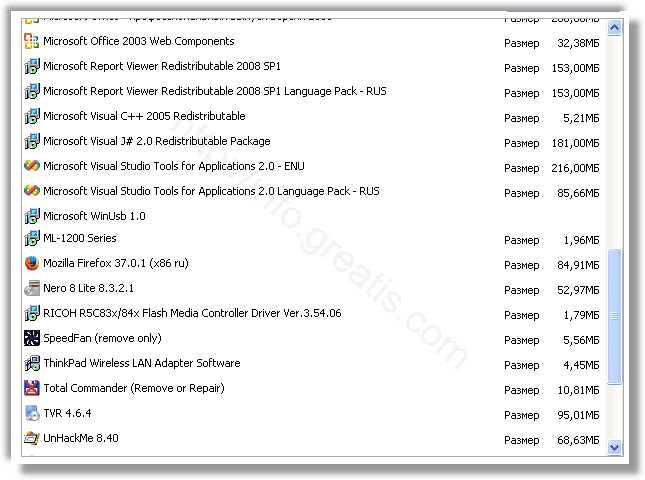
STEP 2: Investigate the list of installed programs and uninstall all unknown recently installed programs.
STEP 3: Open Task Manager and close all processes, related to NOTECO.ME in their description. Discover the directories where such processes start. Search for random or strange file names.
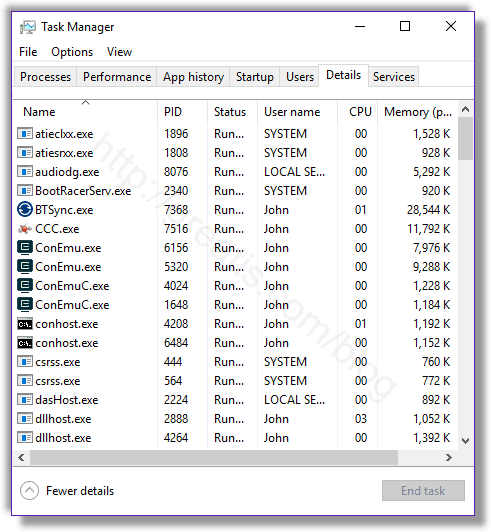
Remove NOTECO.ME virus from running processes
STEP 4: Inspect the Windows services. Press Win+R, type in: services.msc and press OK.
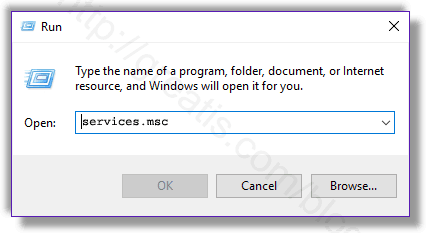
Remove NOTECO.ME virus from Windows services
Disable the services with random names or contains NOTECO.ME in it's name or description.
STEP 5: After that press Win+R, type in: taskschd.msc and press OK to open Windows Task Scheduler.
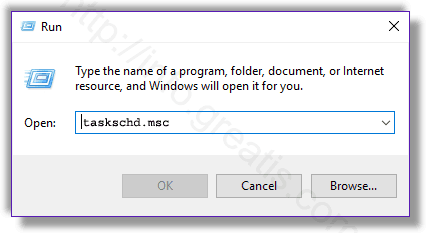
Delete any task related to NOTECO.ME. Disable unknown tasks with random names.
STEP 6: Clear the Windows registry from NOTECO.ME virus.
Press Win+R, type in: regedit.exe and press OK.
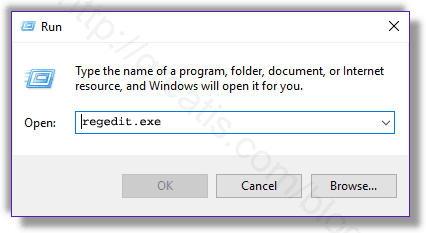
Remove NOTECO.ME virus from Windows registry
Find and delete all keys/values contains NOTECO.ME.
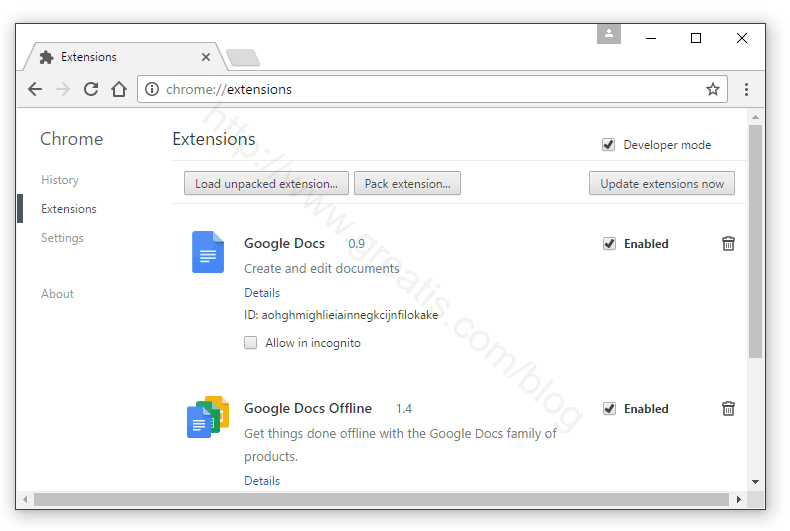
STEP 7: Remove NOTECO.ME from Google Chrome.
STEP 8: Remove NOTECO.ME from Internet Explorer.
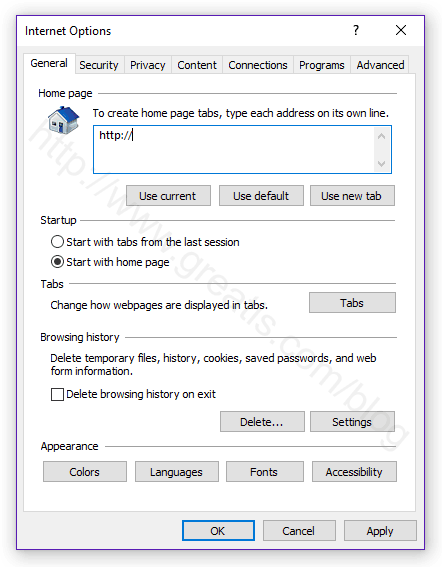
Set Internet Explorer Homepage
STEP 9: Remove NOTECO.ME from Mozilla Firefox.
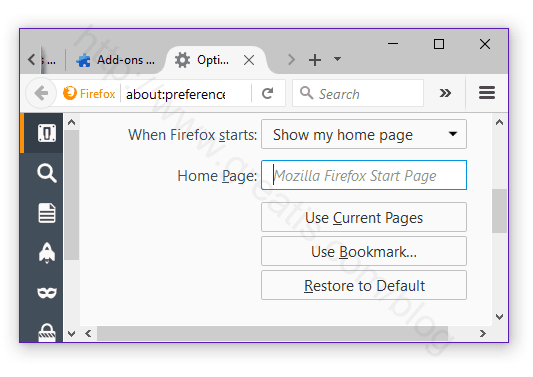
Change Firefox Home Page
STEP 10: And at the end, clear your basket, temporal files, browser's cache.
But if you miss any of these steps and only one part of virus remains – it will come back again immediately or after reboot.